# Use assets
In the previous tutorial you learned how to describe UI with `Emerge.UI`.
The next step is to bring real media into that UI: images, SVGs, background
images, and custom fonts.
Assets in Emerge are still declarative. You describe a source in your UI tree,
and the renderer resolves it for you.
## Static assets live under `priv/`
Logical asset paths resolve from your app's `priv/` directory.
For example:
- `priv/images/logo.png`
- `priv/images/hero.jpg`
- `priv/icons/check.svg`
- `priv/fonts/Inter-Regular.ttf`
You can refer to those files by logical path string, or you can use the `~m`
sigil for compile-time verification.
## Start with logical path strings
The simplest source form is a logical path string:
```elixir
image([width(px(120)), height(px(120))], "images/logo.png")
svg([width(px(24)), height(px(24))], "icons/check.svg")
el(
[
width(px(320)),
height(px(180)),
Background.image("images/hero.jpg", fit: :cover)
],
none()
)
```
Logical paths are resolved from the `otp_app` you pass to `EmergeSkia.start/1`
or that the viewport infers for you.
## Prefer `~m` in app code
Import `Emerge.Assets.Path` in the module where you describe UI:
```elixir
defmodule MyApp.UI do
use Emerge.Assets.Path, otp_app: :my_app
use Emerge.UI
end
```
Then you can write compile-time verified paths:
```elixir
~m"images/logo.png"
~m"images/hero.jpg"
~m"icons/check.svg"
```
`~m` verifies that the file exists under `priv/` at compile time and tracks it
as an external resource.
## Show an image and a background image
This example uses a normal image element and a background image on a framed
element:
```elixir
column(
[
width(fill()),
height(fill()),
padding(16),
spacing(16),
Background.color(color(:slate, 900)),
Border.rounded(14)
],
[
column([spacing(8)], [
el([Font.color(color(:slate, 50)), Font.size(14)], text("image/2")),
el(
[
padding(10),
Background.color(color(:slate, 800)),
Border.rounded(12)
],
image([width(px(120)), height(px(120)), Border.rounded(10)], "sample_assets/static.jpg")
)
]),
column([spacing(8)], [
el([Font.color(color(:slate, 50)), Font.size(14)], text("Background.image/2")),
el(
[
width(px(288)),
height(px(160)),
padding(12),
Background.image("sample_assets/fallback.jpg", fit: :cover),
Border.rounded(12)
],
column([height(fill()), spacing(8)], [
el(
[
padding_xy(10, 6),
Background.color(color_rgba(15, 23, 42, 0.7)),
Border.rounded(999),
Font.color(color(:slate, 50))
],
text("Featured trail")
),
el(
[
align_bottom(),
padding(10),
Background.color(color_rgba(15, 23, 42, 0.58)),
Border.rounded(10),
Font.color(color(:slate, 50))
],
column([spacing(4)], [
el([Font.size(18)], text("Background image host")),
el([Font.size(12), Font.color(color(:slate, 200))], text("Foreground content sits on top."))
])
)
])
)
])
]
)
```
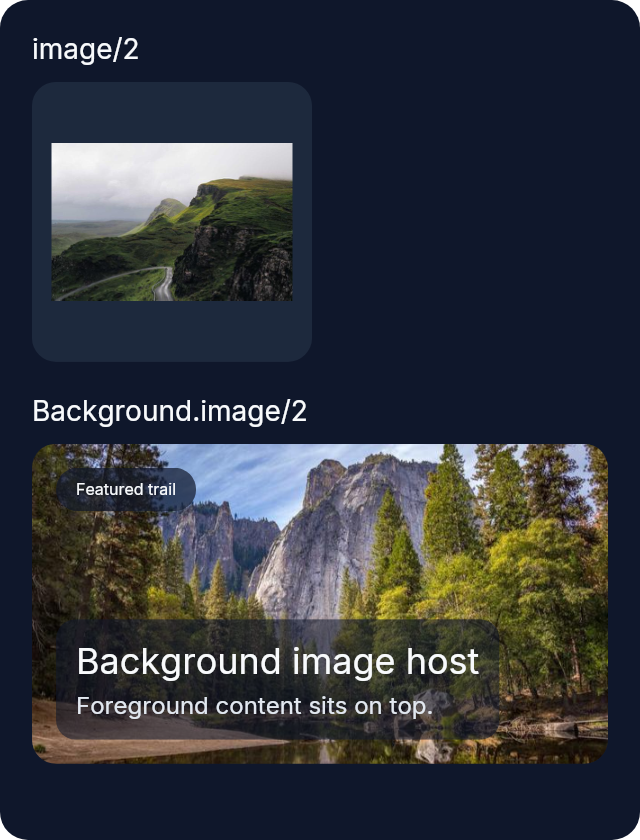 `image/2` creates an image element.
`Background.image/2` paints an image inside another element's frame.
## Use SVG files
Use `svg/2` when the source is an SVG:
```elixir
row(
[
width(fill()),
height(fill()),
padding(16),
spacing(12),
Background.color(color(:slate, 900)),
Border.rounded(14)
],
[
el(
[
width(fill()),
padding(12),
Background.color(color(:slate, 800)),
Border.rounded(12)
],
column([center_x(), spacing(8)], [
svg([width(px(48)), height(px(48))], "sample_assets/template_cloud.svg"),
el([Font.color(color(:slate, 50)), Font.size(13)], text("Original SVG"))
])
),
el(
[
width(fill()),
padding(12),
Background.color(color(:slate, 800)),
Border.rounded(12)
],
column([center_x(), spacing(8)], [
svg(
[width(px(48)), height(px(48)), Svg.color(color(:sky, 500))],
"sample_assets/template_cloud.svg"
),
el([Font.color(color(:slate, 50)), Font.size(13)], text("Svg.color/1"))
])
)
]
)
```
`image/2` creates an image element.
`Background.image/2` paints an image inside another element's frame.
## Use SVG files
Use `svg/2` when the source is an SVG:
```elixir
row(
[
width(fill()),
height(fill()),
padding(16),
spacing(12),
Background.color(color(:slate, 900)),
Border.rounded(14)
],
[
el(
[
width(fill()),
padding(12),
Background.color(color(:slate, 800)),
Border.rounded(12)
],
column([center_x(), spacing(8)], [
svg([width(px(48)), height(px(48))], "sample_assets/template_cloud.svg"),
el([Font.color(color(:slate, 50)), Font.size(13)], text("Original SVG"))
])
),
el(
[
width(fill()),
padding(12),
Background.color(color(:slate, 800)),
Border.rounded(12)
],
column([center_x(), spacing(8)], [
svg(
[width(px(48)), height(px(48)), Svg.color(color(:sky, 500))],
"sample_assets/template_cloud.svg"
),
el([Font.color(color(:slate, 50)), Font.size(13)], text("Svg.color/1"))
])
)
]
)
```
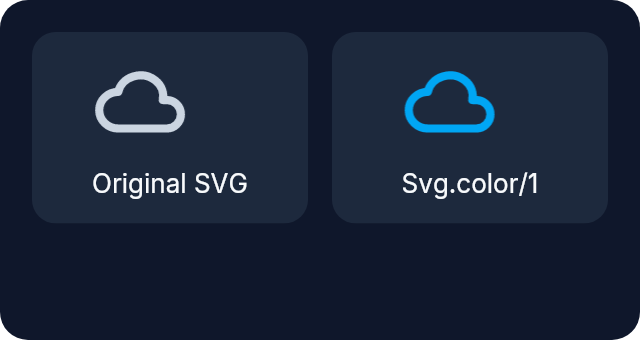 By default, SVGs keep their original colors.
Use `Svg.color/1` when you want template-style tinting.
## Background image fit modes
`Background.image/2` defaults to `fit: :cover`.
Use:
- `fit: :cover` to fill the frame and crop if needed
- `fit: :contain` to keep the whole image visible
- `Background.tiled/1`, `Background.tiled_x/1`, and `Background.tiled_y/1` for repeat modes
Example:
```elixir
el(
[
width(px(220)),
height(px(120)),
Background.image("images/logo.png", fit: :contain),
Border.rounded(12)
],
none()
)
```
## Configure fonts at renderer startup
Fonts work a little differently from images.
Images and SVGs are referenced directly in the UI tree.
Fonts are registered once when the renderer starts, and then selected in UI code
by `family`, `weight`, and `italic`.
If you want multiple variants of the same family, register each variant:
```elixir
{:ok, renderer} =
EmergeSkia.start(
otp_app: :my_app,
title: "My App",
assets: [
fonts: [
[family: "Inter", source: "fonts/Inter-Regular.ttf", weight: 400],
[family: "Inter", source: "fonts/Inter-Bold.ttf", weight: 700],
[family: "Inter", source: "fonts/Inter-Italic.ttf", weight: 400, italic: true]
]
]
)
```
After that, use the configured family in UI code:
```elixir
column(
[
width(fill()),
height(fill()),
padding(24),
spacing(8),
Background.color(color(:slate, 900)),
Font.family("Inter")
],
[
el([Font.size(22), Font.bold(), Font.color(color(:slate, 50))], text("Release notes")),
el([Font.regular(), Font.color(color(:slate, 200))], text("Design system updated")),
el([Font.italic(), Font.color(color(:slate, 300))], text("Beta"))
]
)
```
By default, SVGs keep their original colors.
Use `Svg.color/1` when you want template-style tinting.
## Background image fit modes
`Background.image/2` defaults to `fit: :cover`.
Use:
- `fit: :cover` to fill the frame and crop if needed
- `fit: :contain` to keep the whole image visible
- `Background.tiled/1`, `Background.tiled_x/1`, and `Background.tiled_y/1` for repeat modes
Example:
```elixir
el(
[
width(px(220)),
height(px(120)),
Background.image("images/logo.png", fit: :contain),
Border.rounded(12)
],
none()
)
```
## Configure fonts at renderer startup
Fonts work a little differently from images.
Images and SVGs are referenced directly in the UI tree.
Fonts are registered once when the renderer starts, and then selected in UI code
by `family`, `weight`, and `italic`.
If you want multiple variants of the same family, register each variant:
```elixir
{:ok, renderer} =
EmergeSkia.start(
otp_app: :my_app,
title: "My App",
assets: [
fonts: [
[family: "Inter", source: "fonts/Inter-Regular.ttf", weight: 400],
[family: "Inter", source: "fonts/Inter-Bold.ttf", weight: 700],
[family: "Inter", source: "fonts/Inter-Italic.ttf", weight: 400, italic: true]
]
]
)
```
After that, use the configured family in UI code:
```elixir
column(
[
width(fill()),
height(fill()),
padding(24),
spacing(8),
Background.color(color(:slate, 900)),
Font.family("Inter")
],
[
el([Font.size(22), Font.bold(), Font.color(color(:slate, 50))], text("Release notes")),
el([Font.regular(), Font.color(color(:slate, 200))], text("Design system updated")),
el([Font.italic(), Font.color(color(:slate, 300))], text("Beta"))
]
)
```
 The key idea is:
- `family` selects the registered family
- `Font.bold/0` or `Font.weight(700)` selects the bold variant
- `Font.italic/0` selects the italic variant
If you want a family to support multiple weights or italics, register those
variants in `assets.fonts`.
## Runtime filesystem paths
Emerge also supports runtime filesystem paths:
```elixir
image([width(px(160)), height(px(96))], {:path, "/data/photos/photo.jpg"})
```
Runtime path loading is disabled by default.
Enable it only when needed, and use an explicit allowlist in
`EmergeSkia.start/1`:
```elixir
assets: [
runtime_paths: [
enabled: true,
allowlist: ["/data/photos"],
follow_symlinks: false
]
]
```
## Asset start options
| Option | Default | Purpose |
|---|---|---|
| `assets.decode_at_size` | `false` | Decode/resample rasters to their fitted device-space draw size. |
| `assets.cache.max_entries` | `256` | Maximum retained decoded raster content IDs. |
| `assets.cache.max_bytes` | `268_435_456` | Maximum retained decoded pixel bytes. |
| `assets.fonts` | `[]` | Font family/source/weight/italic registrations loaded at startup. |
| `assets.runtime_paths.enabled` | `false` | Permit `{:path, absolute_path}` sources. |
| `assets.runtime_paths.allowlist` | `[]` | Absolute roots allowed for runtime paths. |
| `assets.runtime_paths.follow_symlinks` | `false` | Permit canonical paths reached through symlinks. |
| `assets.runtime_paths.max_file_size` | `25_000_000` | Maximum encoded runtime file bytes. |
| `assets.runtime_paths.extensions` | image/SVG list | Allowed extensions: `.png`, `.jpg`, `.jpeg`, `.webp`, `.gif`, `.bmp`, and `.svg`. |
A font entry requires `family` and logical `source`; `weight` defaults to `400`
and must be from `100` through `900`, while `italic` defaults to `false`.
Asset source workers, configuration, registered fonts, and decoded caches are
renderer-local. Concurrent renderers can use different source roots, runtime
path policies, fonts, and cache limits.
Runtime file-size limits do not bound decoded dimensions or pixels. Validate
asset dimensions before making untrusted files available to the renderer. The
raster-cache limits bound retained decoded pixels, not peak decode allocation.
## Bound decoded raster memory
Raster source files are compressed, but decoded pixels normally use four bytes
per pixel. Cache limits apply independently to each renderer, so process-wide
retention can reach the sum of all running renderers' limits. Configure
decoded-raster retention independently from runtime file limits:
```elixir
assets: [
decode_at_size: true,
cache: [
max_entries: 32,
max_bytes: 32 * 1024 * 1024
]
]
```
Defaults are 256 entries and 256 MiB across renderers in the same BEAM
instance:
- `max_entries` limits how many decoded raster images stay available for reuse.
- `max_bytes` limits retained decoded pixels, not compressed file size.
- Setting either limit to `0` disables retained raster reuse for that limit.
Images still decode and draw when requested.
SVG rendering is always available, including embedded builds; there is no
optional SVG feature to enable.
## Decode raster images at draw size
Set `decode_at_size: true` when large files are normally displayed at smaller
sizes. Emerge decodes the image near the size at which it will be drawn instead
of retaining the full source dimensions.
Reuse follows these rules:
- a retained raster at least as wide and tall as the new target is reused;
- a larger target requests and retains a larger decode;
- one content ID retains at most one decoded raster, so the larger decode
replaces the smaller one;
- image fit, layout scale, and device-space draw size determine the target, not
the source file dimensions alone.
`decode_at_size` defaults to `false`. Enable it for thumbnail grids and
constrained devices where full-size decoded images would waste memory.
## Read asset-memory diagnostics
Start with `renderer_stats_log: true` to include asset usage in each five-second
summary:
```text
asset memory
sources: entries=4 encoded_bytes=430561
raster cache: entries=1 bytes=120960 limits=entries:8 bytes:2097152
vector cache: entries=2 bytes=32768 limits=entries:256 bytes:16777216
raster variants
source="images/photo.jpg" source_dimensions=1581x1333 decoded_dimensions=189x160 decoded_bytes=120960
```
Use `raster cache` to see retained decoded memory and compare
`source_dimensions` with `decoded_dimensions` to confirm that
`decode_at_size: true` is reducing image size. Set cache limits from the memory
available to your device rather than from compressed file sizes.
## What happens while assets load
Asset loading is asynchronous.
While a source is still loading, Emerge shows a loading placeholder. If loading
fails, Emerge shows a failed placeholder.
You do not need to block rendering while assets are being resolved.
## Next
Continue with [Manage state](state_management.md) to move application state out
of the viewport as the UI grows.
The key idea is:
- `family` selects the registered family
- `Font.bold/0` or `Font.weight(700)` selects the bold variant
- `Font.italic/0` selects the italic variant
If you want a family to support multiple weights or italics, register those
variants in `assets.fonts`.
## Runtime filesystem paths
Emerge also supports runtime filesystem paths:
```elixir
image([width(px(160)), height(px(96))], {:path, "/data/photos/photo.jpg"})
```
Runtime path loading is disabled by default.
Enable it only when needed, and use an explicit allowlist in
`EmergeSkia.start/1`:
```elixir
assets: [
runtime_paths: [
enabled: true,
allowlist: ["/data/photos"],
follow_symlinks: false
]
]
```
## Asset start options
| Option | Default | Purpose |
|---|---|---|
| `assets.decode_at_size` | `false` | Decode/resample rasters to their fitted device-space draw size. |
| `assets.cache.max_entries` | `256` | Maximum retained decoded raster content IDs. |
| `assets.cache.max_bytes` | `268_435_456` | Maximum retained decoded pixel bytes. |
| `assets.fonts` | `[]` | Font family/source/weight/italic registrations loaded at startup. |
| `assets.runtime_paths.enabled` | `false` | Permit `{:path, absolute_path}` sources. |
| `assets.runtime_paths.allowlist` | `[]` | Absolute roots allowed for runtime paths. |
| `assets.runtime_paths.follow_symlinks` | `false` | Permit canonical paths reached through symlinks. |
| `assets.runtime_paths.max_file_size` | `25_000_000` | Maximum encoded runtime file bytes. |
| `assets.runtime_paths.extensions` | image/SVG list | Allowed extensions: `.png`, `.jpg`, `.jpeg`, `.webp`, `.gif`, `.bmp`, and `.svg`. |
A font entry requires `family` and logical `source`; `weight` defaults to `400`
and must be from `100` through `900`, while `italic` defaults to `false`.
Asset source workers, configuration, registered fonts, and decoded caches are
renderer-local. Concurrent renderers can use different source roots, runtime
path policies, fonts, and cache limits.
Runtime file-size limits do not bound decoded dimensions or pixels. Validate
asset dimensions before making untrusted files available to the renderer. The
raster-cache limits bound retained decoded pixels, not peak decode allocation.
## Bound decoded raster memory
Raster source files are compressed, but decoded pixels normally use four bytes
per pixel. Cache limits apply independently to each renderer, so process-wide
retention can reach the sum of all running renderers' limits. Configure
decoded-raster retention independently from runtime file limits:
```elixir
assets: [
decode_at_size: true,
cache: [
max_entries: 32,
max_bytes: 32 * 1024 * 1024
]
]
```
Defaults are 256 entries and 256 MiB across renderers in the same BEAM
instance:
- `max_entries` limits how many decoded raster images stay available for reuse.
- `max_bytes` limits retained decoded pixels, not compressed file size.
- Setting either limit to `0` disables retained raster reuse for that limit.
Images still decode and draw when requested.
SVG rendering is always available, including embedded builds; there is no
optional SVG feature to enable.
## Decode raster images at draw size
Set `decode_at_size: true` when large files are normally displayed at smaller
sizes. Emerge decodes the image near the size at which it will be drawn instead
of retaining the full source dimensions.
Reuse follows these rules:
- a retained raster at least as wide and tall as the new target is reused;
- a larger target requests and retains a larger decode;
- one content ID retains at most one decoded raster, so the larger decode
replaces the smaller one;
- image fit, layout scale, and device-space draw size determine the target, not
the source file dimensions alone.
`decode_at_size` defaults to `false`. Enable it for thumbnail grids and
constrained devices where full-size decoded images would waste memory.
## Read asset-memory diagnostics
Start with `renderer_stats_log: true` to include asset usage in each five-second
summary:
```text
asset memory
sources: entries=4 encoded_bytes=430561
raster cache: entries=1 bytes=120960 limits=entries:8 bytes:2097152
vector cache: entries=2 bytes=32768 limits=entries:256 bytes:16777216
raster variants
source="images/photo.jpg" source_dimensions=1581x1333 decoded_dimensions=189x160 decoded_bytes=120960
```
Use `raster cache` to see retained decoded memory and compare
`source_dimensions` with `decoded_dimensions` to confirm that
`decode_at_size: true` is reducing image size. Set cache limits from the memory
available to your device rather than from compressed file sizes.
## What happens while assets load
Asset loading is asynchronous.
While a source is still loading, Emerge shows a loading placeholder. If loading
fails, Emerge shows a failed placeholder.
You do not need to block rendering while assets are being resolved.
## Next
Continue with [Manage state](state_management.md) to move application state out
of the viewport as the UI grows.