This tutorial adds images, SVGs and fonts to a viewport like the one in
Set up a viewport. Asset configuration belongs in the
Emerge.Config returned by mount/1; image sources belong in the UI tree.
You do not need to start a separate renderer.
Put application files under priv/
Add your files to the application's priv/ directory, for example:
my_app/
  priv/
    images/logo.png
    images/hero.jpg
    icons/check.svg
Use paths relative to priv/ in UI code: "images/logo.png", not
"priv/images/logo.png" or a path relative to the current working directory.
The examples below assume these files exist in your app.
Display an image in a viewport
Create a gallery viewport:
defmodule MyApp.View.Gallery do
  use Emerge

  @impl Viewport
  def mount(_opts) do
    {:ok,
     %Emerge.Config{
       output: %Emerge.Config.Window{title: "Gallery"},
       assets: %Emerge.Config.Assets{otp_app: :my_app}
     }}
  end

  @impl Viewport
  def render() do
    column([padding(16), spacing(12)], [
      image([width(px(120)), height(px(120))], "images/logo.png"),
      svg([width(px(24)), height(px(24))], "icons/check.svg")
    ])
  end
end
Start it with MyApp.View.Gallery.start_link() or add it to your supervision tree.
use Emerge provides the UI helpers; assets.otp_app tells Emerge which
application's priv/ directory to use. Replace :my_app with your Mix project's
:app name. A viewport can infer this where possible, but declaring it makes the
asset root explicit.
The gallery has no local state, so mount returns {:ok, config} and uses
render/0. In the counter from the first tutorial, keep
{:ok, state, config} and render/1; add the assets group to its existing config.
Check static paths at compile time
String paths are resolved when the renderer loads them. Use ~m when you want a
missing application file to be caught during compilation instead:
defmodule MyApp.UI.Gallery do
  use Emerge.UI
  use Emerge.Assets.Path, otp_app: :my_app

  def layout do
    column([spacing(12)], [
      image([width(px(120)), height(px(120))], ~m"images/logo.png"),
      svg([width(px(24)), height(px(24))], ~m"icons/check.svg")
    ])
  end
end
Your viewport can now use def render(), do: MyApp.UI.Gallery.layout().
The sigil checks that the file exists under priv/ and tracks it as an external
resource. Its otp_app: option controls that compile-time check; the viewport's
assets.otp_app must still identify the application when running.
Size and fit images
Set one dimension to preserve the source's aspect ratio:
image([width(px(160))], "images/hero.jpg")
svg([height(px(24))], "icons/check.svg")
Set both dimensions when you need a fixed frame, then choose how the source fits:
image(
  [width(px(220)), height(px(120)), image_fit(:contain)],
  "images/hero.jpg"
)
:contain keeps the whole image visible. :cover fills the frame and crops the
excess. For a responsive image, image([width(fill())], source) derives height
from the available width. Explicit size and min/max constraints take precedence.
Use an image as a background
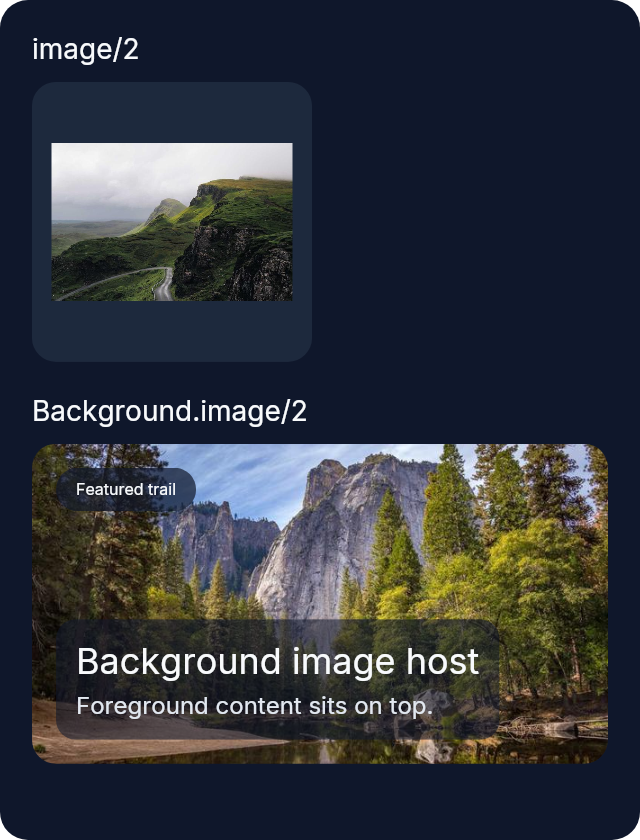
Background.image/2 paints behind an element's content. Its default fit is
:cover:
el(
  [
    width(px(288)),
    height(px(160)),
    padding(12),
    Background.image("images/hero.jpg", fit: :cover),
    Font.color(color(:white))
  ],
  text("Featured trail")
)
Use fit: :contain to avoid cropping. Use Background.tiled/1,
Background.tiled_x/1 or Background.tiled_y/1 to repeat an image.
Here are styled examples of an image element and a background image:
Tint an SVG
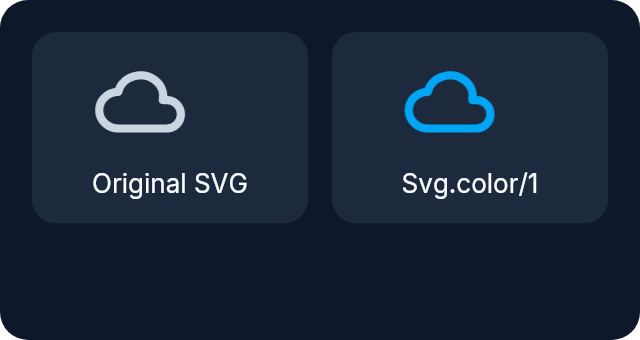
SVGs keep their original colors unless you supply Svg.color/1:
svg(
  [width(px(48)), height(px(48)), Svg.color(color(:sky, 500))],
  "icons/check.svg"
)
Register a font in mount
Images are selected in the tree; fonts are registered in config.assets.fonts
before the viewport renders. Add your font files under priv/fonts/, then return
this configuration from mount:
%Emerge.Config{
  output: %Emerge.Config.Window{title: "Gallery"},
  assets: %Emerge.Config.Assets{
    otp_app: :my_app,
    fonts: [
      %Emerge.Config.Font{family: "Inter", source: "fonts/Inter-Regular.ttf"},
      %Emerge.Config.Font{family: "Inter", source: "fonts/Inter-Bold.ttf", weight: 700},
      %Emerge.Config.Font{family: "Inter", source: "fonts/Inter-Italic.ttf", italic: true}
    ]
  }
}
Return the record as {:ok, config} for the gallery or {:ok, state, config} for
a stateful viewport. These paths require the regular, bold and italic files to
exist in your application's priv/fonts/ directory.
Select the registered family and variants in render:
column(
  [
    width(fill()),
    height(fill()),
    padding(24),
    spacing(8),
    Background.color(color(:slate, 900)),
    Font.family("Inter")
  ],
  [
    el([Font.size(22), Font.bold(), Font.color(color(:slate, 50))], text("Release notes")),
    el([Font.regular(), Font.color(color(:slate, 200))], text("Design system updated")),
    el([Font.italic(), Font.color(color(:slate, 300))], text("Beta"))
  ]
)
Font.family/1 selects the family; Font.bold/0 or Font.weight(700) selects
the registered bold variant; Font.italic/0 selects the italic variant.
Register the variants you use rather than expecting a regular file to provide
all weights and styles. Font registrations require a new viewport to change.
Load user-selected files
Files such as downloaded photos need runtime paths rather than ~m. Enable only
the directories your application needs, by adding a RuntimePaths record to its
assets configuration:
%Emerge.Config{
  assets: %Emerge.Config.Assets{
    otp_app: :my_app,
    runtime_paths: %Emerge.Config.RuntimePaths{
      enabled: true,
      allowlist: ["/data/photos"]
    }
  }
}
Then pass an absolute path in the UI:
image([width(px(160)), height(px(96))], {:path, "/data/photos/photo.jpg"})Runtime loading is off by default. An enabled policy with an empty allowlist still allows no files. Symlinks are rejected by default; if you allow them, resolved paths must remain in an allowed directory. Keep existing font registrations in the same assets record when adding this setting.
These settings are chosen at startup. Once the policy is configured, you can
change the image path in your UI without changing config or restarting the viewport.
See Emerge.Config.RuntimePaths for file-size and extension restrictions.
Optional: reduce image memory
Most apps can keep the cache defaults. For a grid of thumbnails from large photos, consider decoding images near their drawn size and lowering retained-pixel budgets:
%Emerge.Config{
  assets: %Emerge.Config.Assets{
    otp_app: :my_app,
    decode_at_size: true,
    cache: %Emerge.Config.AssetCache{max_entries: 32, max_bytes: 32 * 1024 * 1024}
  }
}
Cache budgets count decoded pixels, not compressed file sizes, and apply to each
renderer separately. They are not a limit on total application or peak decoding
memory. Keep any fonts/runtime-path policy alongside these fields when combining
settings. See Emerge.Config.Assets and Emerge.Config.AssetCache for defaults.
To see periodic performance and asset-memory summaries, add a diagnostics group to your existing config:
%Emerge.Config{
  diagnostics: %Emerge.Config.Diagnostics{logs: [:stats]}
}
This prints summaries rather than requiring you to poll a renderer. For programmatic
measurements instead, see Emerge.Config.Diagnostics.
While an image loads
Emerge loads images without blocking rendering. Give images a fixed frame when layout should not move as a file loads. Slow loads show a small indicator; failed loads show an error placeholder. A content-sized image needs its source dimensions before its final size is known.
Next
Continue with Manage state to move application state out of the viewport as the UI grows.